
CloudKit Syncing Working in Development But Not Production? Here's What to Check

If your app's CloudKit sync works perfectly in Xcode and Simulator, but real users are stuck with their sync failing then there's a good chance it's not a code bug and might instead be a deployment step almost nobody talks about... and the bonus is, fixing it doesn't require shipping an app update.
I ran into this off and on with several of my apps where I had some people email me, I tracked down what I thought it was, pushed an app update, and radio silence... so I thought it had been fixed. And why wouldn't I as everything looked fine on my end in Development. More recently on the last email I stumbled across this.. and can't believe I never knew about this before and wish I had known it years ago... as such I'm sharing it here in the hopes it can help someone else.
TL;DR
- CloudKit has two environments (Development and Production) and they don't share schemas automatically.
- Shipping to the App Store does not deploy your schema to Production. That's a separate manual step.
- The fix: CloudKit Dashboard → your container → Development → Deploy Schema Changes → review → confirm.
- See No Containers? Check the team switcher top-right before assuming nothing's set up.
- TestFlight connects to Production by default... not Development.
- This fixes sync going forward. It won't repair a local store that's already corrupted. More on that below.
Looking Back
I knew that CloudKit runs two separate environments, Development and Production, and that they don't share data with each other. That part seemed like common sense.
What I didn't realize was that they also don't share schema automatically. Development's schema changes are just-in-time so you can add a new field, run the app, CloudKit creates it on the server for you with no extra step. Production's aren't. I'd assumed that once my update cleared App Review and went live, whatever schema changes I'd made in Development would also go out with it. Turns out deploying your app and deploying your schema are two completely separate actions... and only one of them happens automatically when you ship.
Production doesn't auto-create schema... and the failure can be sneaky. Someone's app still has its local data store so it looks fine on their end. But when it tries to sync, CloudKit doesn't have the record type or field your code expects, rejects it outright, and the sync silently fails.
Submitting to the App Store doesn't push your schema to Production. That's a separate, manual action, sitting quietly in the CloudKit Dashboard.
Why Is That?
I have to ask... Why isn't this advertised more? It's not in the Xcode archive/upload flow. There's no warning in App Store Connect. Nothing nags you before you submit. And yet it's common enough that there are multiple Stack Overflow threads and dev blog posts all describing the identical symptom: works in Development, breaks the moment it's live. It's a known gotcha that stays under the radar because it isn't part of the workflow anyone actually walks you through.
Checking CloudKit Database
To check go to CloudKit Database and log in.
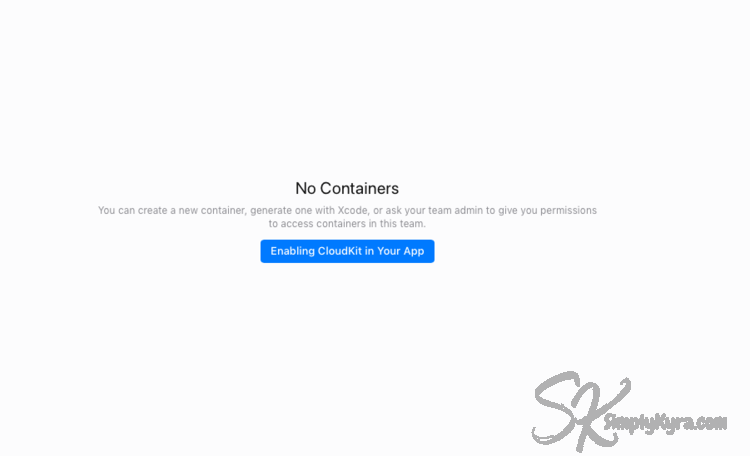
If you land on a page that says No Containers you either haven't uploaded an app with CloudKit... or you need to toggle the team selector in the top-right corner first. For me I started as a personal account and switched to an LLC before publishing my first app... I've discovered it defaults to my personal account. Once I switch teams my containers appear.
Right under the CloudKit Database header you can toggle between your CloudKit containers and, next to it, toggle between Development and Production. Going to Record Types will show you the tables and fields you use.
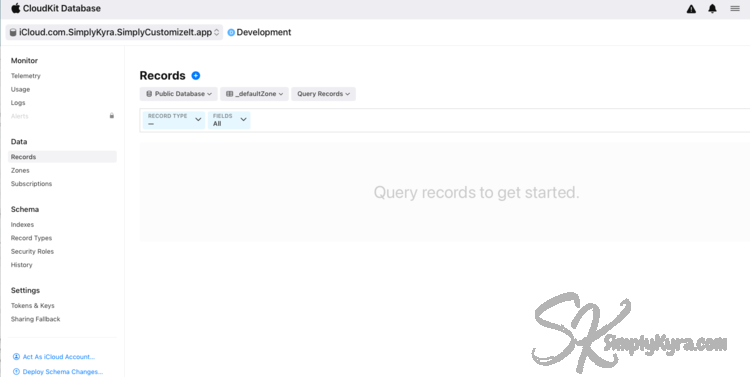
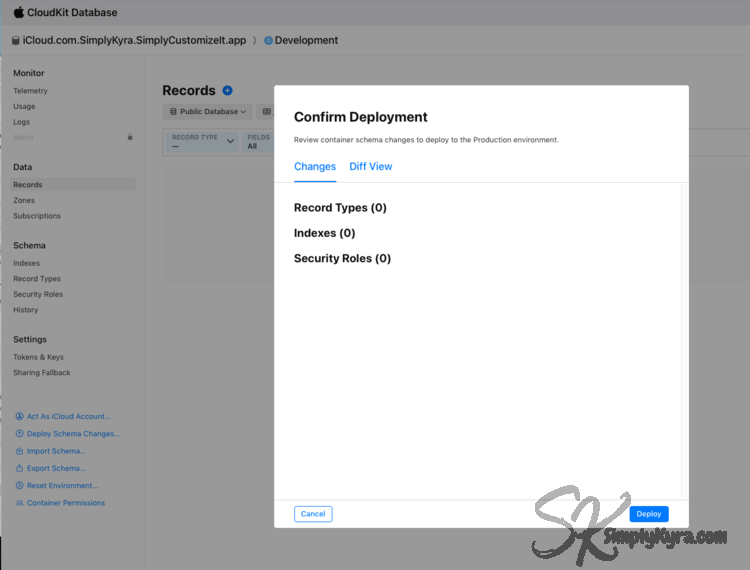
If you look all the way down on the left pane you can see the choice Deploy Schema Changes.... This is only active on your Development page and this is what you want to tap to push those changes to your Production schema. Don't worry about tapping this. Before it does anything there will be a dialog with two tabs.
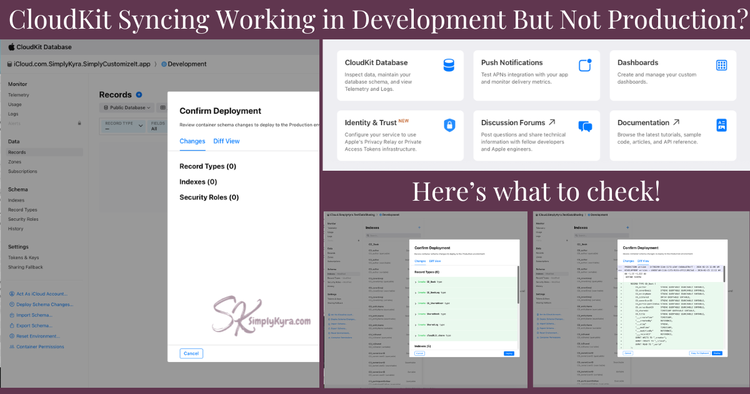
If there are no changes (Production schema is already current) all the counts shown in the dialog will be zeros with nothing pending. In this case it would look something like this:
If there are changes, like when I was working on a sample project a bit ago, you will see them listed in this sheet and can tap Diff View so you know exactly what's about to change for real users...
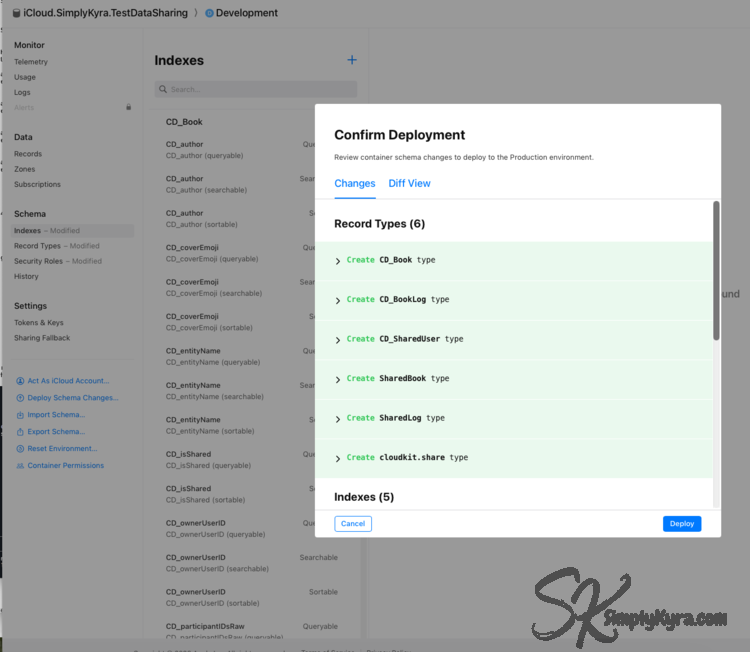
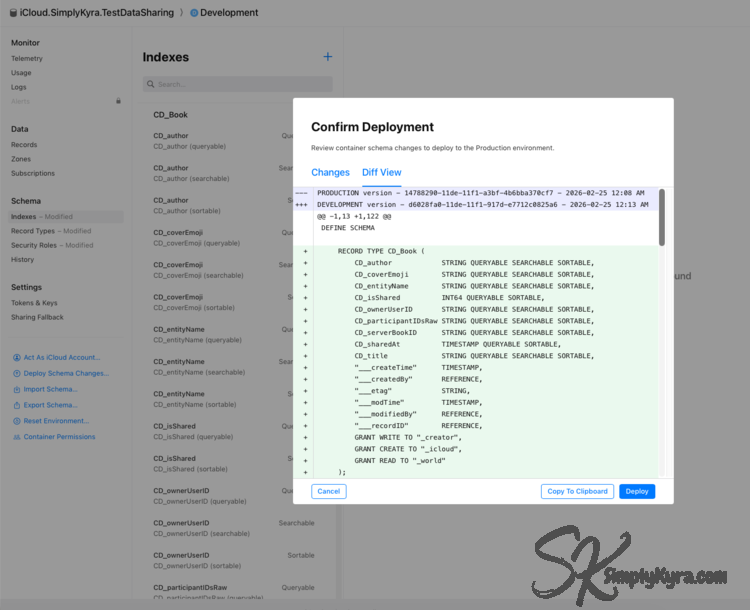
That's it. That single click, plus confirmation, is the piece the App Store submission never does for you.
TestFlight isn't Development either
A quick aside... ish... TestFlight isn't Development and instead connects to Production. I may have realized this months ago when testing task sharing in Simply Remember It. At that time I needed two accounts running on the same database... and so needed to switch my old iPad to a test account... and switch my phone from the Xcode build to the TestFlight one. Once done I needed to do the above steps and deploy the Development changes. Once all the steps were in I could share tasks between different Apple users!
Looking back I should've looked into deploying more and looked into my other apps. At the time I thought there were two... hmmm... deployment levels of Production. I assumed when an App was approved by App Store the production schema was updated. Thus I only needed to deploy because I was testing with TestFlight before it went Live. I was wrong and left my other apps in limbo longer than I should've.
Aside: I haven't looked into it as I'm now on Production with that app... wanted to share tasks with my family and theirs is from the App Store... too far in now. But if you want to test Development-environment behavior through TestFlight I recently came across an entitlements override for that with Fatbobman's Fixing CloudKit Sync in Production: Deploying Schema.
One Thing This Won't Fix
Deploying your schema fixes sync going forward, but it won't undo damage that already happened before you deployed it. My case involved a data mismatch that broke the local data container and since it couldn't be opened there was no way to migrate the existing data. The only fix was deleting and reinstalling the app, which meant losing all local data in the process. Had the schema been deployed ahead of time, CloudKit might have been able to re-sync that data afterwards which is exactly why this is now a standing step, not an afterthought.
Going Forward
I plan to deploy to production each time I push an update to the App Store. CloudKit syncing is a great way to back up local data and I'm glad it's now in place to help mitigate future issues.
Hope this saves you the weeks it cost me and I truly hope you're having a good week.
Did this save you time?